This work instruction is part of the guide Setting up your insurance solution.
This article aims to guide you step-by-step through the product configuration required for policy administration. For general insight and overview in the data model, have a look at Insurance product data model and concepts . Throughout the article we will be referring back to this data model.
For a smooth implementation, we assume that you’ve installed the insurance datasets and that your application model is up-to-date according to the guide.
1. Prepare
Perform a careful analysis of the product to be configured. Our workshop templates and backlog templates can help to request all necessary information in a structured way for an efficient configuration.
Download Workshop & Backlog Templates (Dutch)
2. Product structure
To create a product, we must first set up our product structure: which packages, policies and coverages are you aiming to sell, and which objects are insured by them?
- Add new products;
- Combine products in product structures
- Configure product properties
1. Add new products
A product has to exist for each type of package, policy, coverage and object. To create a new product, several fields must be configured specifically depending on the type. This information should be generic, as the aim is to re-use a product in multiple structures, as well as selling them for multiple insurers.
- Navigate to Products in Novulo, under “Management”.
- Click on the plus icon to add a Product.
- Fill out the following fields:
- Code / Type: Define the code of this product (e.g. MV700 or MV790). The type will change based on your type of insurance.
- Name: Specify the general name of the product. Each insurer can have its own name set at the sales item level
- Product group: Select the product group for the product. All product groups should already be created or imported with the insurance datasets. Make sure the product group has “Type of group” set to “Insurances” for packages/policies/coverages, or “Objects” for objects
- Unit group / Unit: “Insurances” and “Policy” (set correctly by default)
- Type of insurance: Set to whichever type of insurance you’re creating
- Sales item: Check this box for packages/policies/coverages, so we can sell them. Insured objects are not
- Other fields will be discussed later
- Save the product

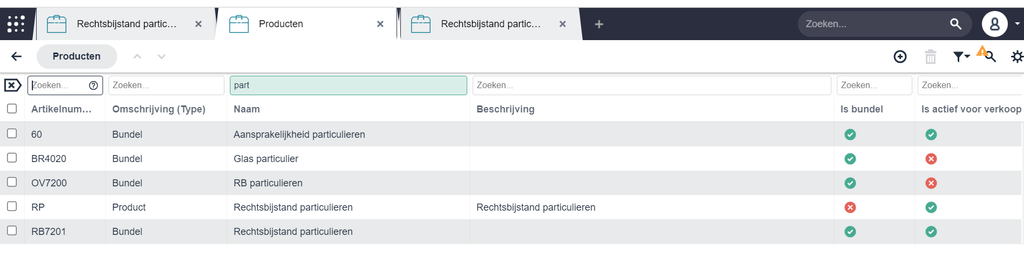

Adding a new product group
A standard set of product groups is predefined. In specific cases, you may need to create a new one.
- Go to Settings, search for “Product groups”
- Choose the parent group under which you want to add a new subgroup
- Fill out the following fields:
- Nummer: Identifier for the group you are creating.
- Naam: Display name of the product group.
- Actief: Indicates whether the group is active.
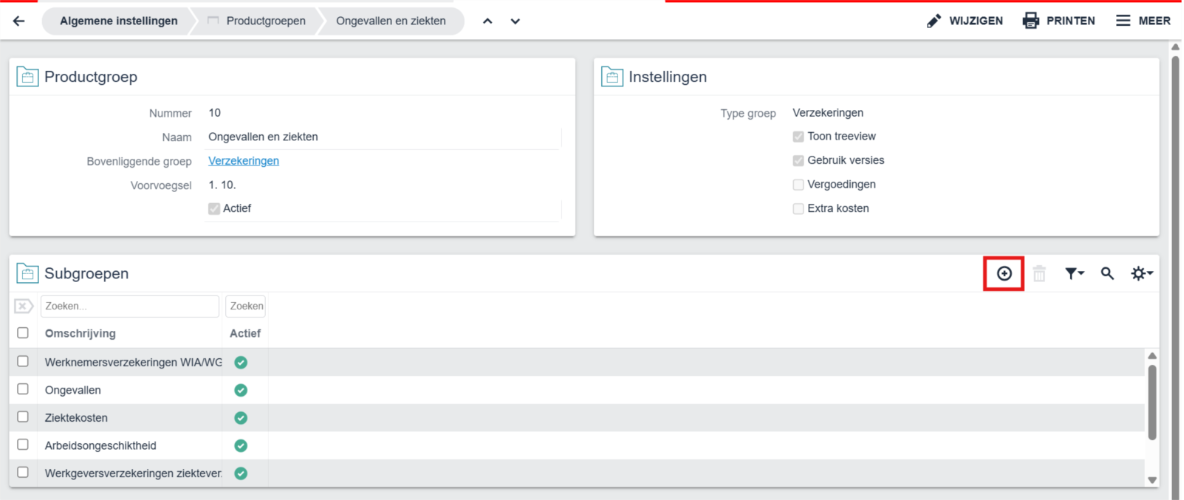
Properties in the settings panel:
- Type groep: Indicates the highest level/category for the group and drives where the group sits in the hierarchy.
- Toon treeview: Toggles whether the hierarchical tree (navigation structure) is shown for this group.
- Gebruik versies: Enables versioning so you can maintain multiple versions of product groups in parallel.
- Vergoedingen: Enable if you want to link commissions/remunerations to this product group.
- Extra kosten: Enable if extra charges can be attached at product-group level.

2. Combine products in product structures
At the product level, we want to add every relevant option to a structure. At the sales item level we will distinguish which subsets options are applicable per insurer.
- Navigate to a package or policy product
- Go to the Composition tab
- For packages: add policies that could belong to this package
- For policies: add coverages and objects that could belong to this policy

3. Configure product properties
After creating the products, we should configure the product-specific properties. These can be copied to sales items and to other products. They are essential to premium calculation, but also for saving all details that don’t belong in the static product fields.
Question connections
- Make sure that the properties are configured in the general Questions table
- Navigate to the product that needs properties
- You can link the applicable questions to a product on the Questions tab, by adding question connections
- Besides linking your questions, the question connection page has various options to specify when or how the questions should be answered. These options can vary depending on the composition of your application


Default answers
Some properties have default values; which will be used for new policies or shopping carts. Sometimes the default values are “non-overwritable”, meaning that these values can’t be edited in a policy or shopping cart.
- Navigate to the product that needs default answers
- Add default answers on the Default answers tab
- Select the question that needs answering, and whether it is overwritable or not


Note: Questions store the required information in the product. Non-overwritable answers are not currently shown in the property overview, but they are still present in the system.
Adding new questions and answer scales
If a question can be linked to an AFD element, do so. Always check if the question already exists before creating a new one. This saves rework later and ensures consistent data exchange. Before creating anything new, first check whether the question and answer scale already exist and reuse them if possible.
Each question has an Antwoordschaal that defines its answer format (e.g., text, date, numeric, multiple choice). Reuse existing ones when possible.
To create:
-
New Answer Scale: Go to Instellingen, search for “Antwoordschalen.”
-
Create or select the scale that matches the expected data type and constraints for the question.
-
New Question: Go to Instellingen, search for “Vragen.”
-
Create the question, select the appropriate answer scale, and, if applicable, link the AFD element.

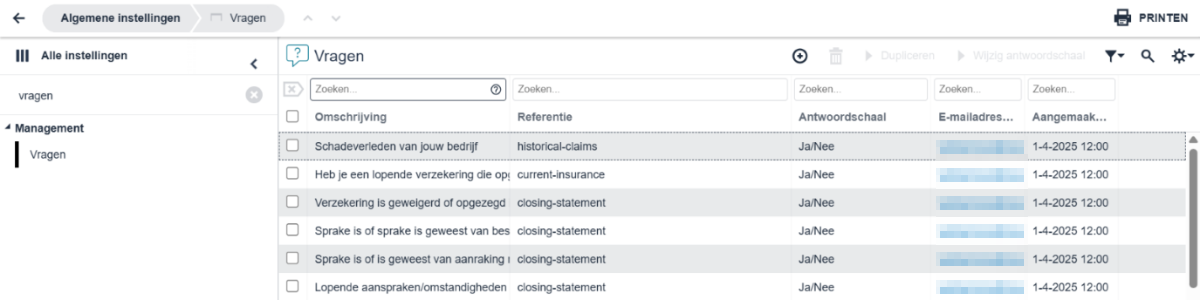
3. Sales item structure
Once your product structure is complete, sales items can be created. Sales items expand upon products by adding insurer-specific details required for premium calculation. Every product that you want to sell - packages, policies, and coverages - should have a sales item. Objects do not.
- Add sales items to products
- Combine sales items in sales item structures
- Make pre-defined combinations
- Configure sales item properties
- Configure premium calculation
- Add clauses and terms
- Choose acceptance templates
1. Add sales items to products
We recommend that you start by adding the sales item of a policy, because adding coverage sales items can be done with a short-cut shown in the step 2.4.
- You can add a sales item to products by going to the Sales items tab.

- Fill out the following fields:
- Reference: A free-text field to identify the sales item (e.g. MV790_005 or MV790_007 – Product Code + Sales Item Code)
- Risk pool: This is the insurer that you’re selling the product for. The field is called ‘risk pool’ because multiple insurers could pool together and offer an insurance that way. Every insurer should have at least one accompanying risk pool
- Sales name: Define a insurer-specific name for the product, if needed
- Sales description: Give a summary for this product, if needed
- Sales unit: For packages and policies, set to a recurring unit (i.e. “per month”). For coverages, set to “policy”.
- Reference determination: Choose how the references of your insurance contracts will be generated. Our dataset offers one for packages, policies and coverages, which you can edit or add onto in the Reference determinations table under all Settings

2. Combine sales items in sales item structures
Similar to the product structure, we will create structures for the insurance contracts we want to sell. This is a subset of the product structure; not every policy product in the package product needs to be a policy sales item in the package sales item.
- Navigate to a package or policy sales item
- Go to the Structure items tab
- You can link existing policy or coverage sales items with the left button
- You can add new policy or coverage sales items with the right button, based on your product structure


3. Make pre-defined combinations
Sales item structures are, like product structures, still just ‘possibilities’ of which policies and coverages an insurer offers in their packages. You can make make selections of these possibilities in what we call composition combinations. These are especially relevant when you’re creating a front-end, where you want to offer/display these combinations.
- Navigate to the sales item that needs a composition combination. Usually this is done at the policy level, but a package could have 3-layered composition combinations as well
- Fill out the fields
- Sequence: Assign a sequence number for sorting multiple combinations
- Code: Make a code to recognize this combination (e.g. “MV790_005 complete”)
- Description: Give a name for this combination
- Long description: Describe the contents of this combination
- Add the desired coverages as composition combinations items


4. Configure sales item properties
At the sales item level, you specify which properties are relevant for this product for this particular insurer. The properties added in step 1.1.3. are your starting point: you can duplicate all properties based on the product, and then narrow the selection down, as well as add more specific filters, validation rules, or other propertiesto the properties. This step is relevant for policies and coverages.
- Navigate to the sales item that needs properties
- Open the Questions tab
- Use the “Duplicate from product” button to instantly add all properties you’ve added to the product in step 1.1.3.; you can also add questions manually.

Contracts with chain partners (commissions)
If an intermediary is configured and you want to set commissions:
- Go to the Vragen panel and add:
- Doorlopende provisie – The percentage or amount periodically paid to the intermediary.
- Volmachtbeloning – The compensation given to the delegated authority.
- Go to the Standaardantwoorden panel and set default answers for these questions.
- Check Overschrijfbaar if you want these answers to be editable.


Setting filters & validation
In Novulo, you can configure filters and validation for questions within a sales price list item (verkoopprijslijstitem). Use filters to restrict visible answer options; use validation to enforce input rules.
1. Filters
For multiple-choice questions, filters ensure users only see relevant options.
- Go to the sales item, select the question, and open the Vraagkoppeling bij verkoopprijslijstitem panel.
- Check “Antwoordmogelijkheden filteren” to add filters.
- Scroll down to the two panels:
- Filters (left) – currently applied filters
- Mogelijke filters (right) – available options to filter on
- Select the needed answer in Mogelijke silters and click “Filters toevoegen”. The selected answer appears in Filters.

You can also filter answers based on another question by checking “Antwoordmogelijkheden filteren met andere vraagkoppeling”. Choose the relevant question in Possible Filter Questions and click “Filtervragen toevoegen”. The selected question appears under Filter Questions.

2. Validation
Use validation to enforce rules (e.g., value must be ≥ 0).
-
Go to the sales item, select the question, and open the Validatie panel.
-
Click “Voeg validatie toe”.
-
You’ll land on a Validation Group.
-
Choose Validation Rule (single condition) or Validation Group (multiple rules combined):
- Type - Regel – A single condition (e.g., number of employees ≥ 0).
- Type - groep – Multiple rules combined with AND/OR logic.
-
Operator: EN/OF determines how rules in the group combine.
-
Message: – the error text shown to users when validation fails.
-
For Validation Rule Type, you can choose for a:
- Vaste waarde: compare the answer to a specific constant.
- Vergelijk met andere vraag: compare to the answer of a different question.
- Vaste waarde van een andere vraag: je vergelijkt het antwoord met een vaste waarde die gekoppeld is aan een andere vraag.
-
Operator: greater than, less than, equal to, not equal to, greater than or equal to, less than or equal to, is empty, is not empty.
- Groter dan
- Kleiner dan
- Gelijk aan
- Ongelijk aan
- Groter dan of gelijk aan
- Kleiner dan of gelijk aan
- Is leeg
- Is niet leeg
-
Value: enter the comparison value. The expected input type depends on the answer scale chosen for the question (e.g., number vs. text vs. date).


5. Configure premium calculation
Needs to be done for policies
- Billing units: If you correctly set the sales unit to a recurring unit, this unit will also be added as a billing unit. If you want to use multiple units, you can add more here.
- Price list: Select the price list (e.g., “Standard – Euro” means prices are in euros).
- Pricing method kit: Determines how the price is calculated. Fixed price means the price will be determined directly for this product. Calculated price means the price will be the sum of the underlying composition items.
- Pricing method:
- Novulo Expressions – Prices calculated with internal Novulo formulas.
- Calculation Template – Prices calculated via a linked Excel file. Cells in the file are directly linked to questions, so make sure your linked questions match the questions in the calculation template!
- VPI – Linked to an external tariff module.
- Collection by: Specify the party responsible for direct debit collections.


Discounts and surcharges
Link a discount template to automatically apply a discount based on pre-set rules.

To create a discount:
- Go to Instellingen, search for Kortingen, and configure as a fixed amount or percentage.
- Use Novulo Expressions to apply them dynamically based on conditions.
6. Clauses and terms
Clauses and terms define the specific conditions of the insurance.
- Clausules: Add any clauses that apply (extra provisions or exceptions to standard coverage).
- Voorwaarden: Add general or specific terms applicable to the product or policy.

7. Choose acceptance templates
Version control
Version control allows you to create and manage multiple versions of the same sales item. Useful for making changes (e.g., terms, rates, coverage) without altering the existing version.

Click Versiegroep to see all linked versions. From here, you can manage or delete versions.
